The short answer
On PS5, GTA 6 uses R2 to shoot, L2 to aim, R1 for cover, ✕ to jump and climb, □ for melee, ○ to crouch and △ to interact. Click L3 to run, R3 to look behind, and press the touchpad for the map. The game offers three control schemes under Settings, Control Scheme.
01Default controls on foot (PS5)
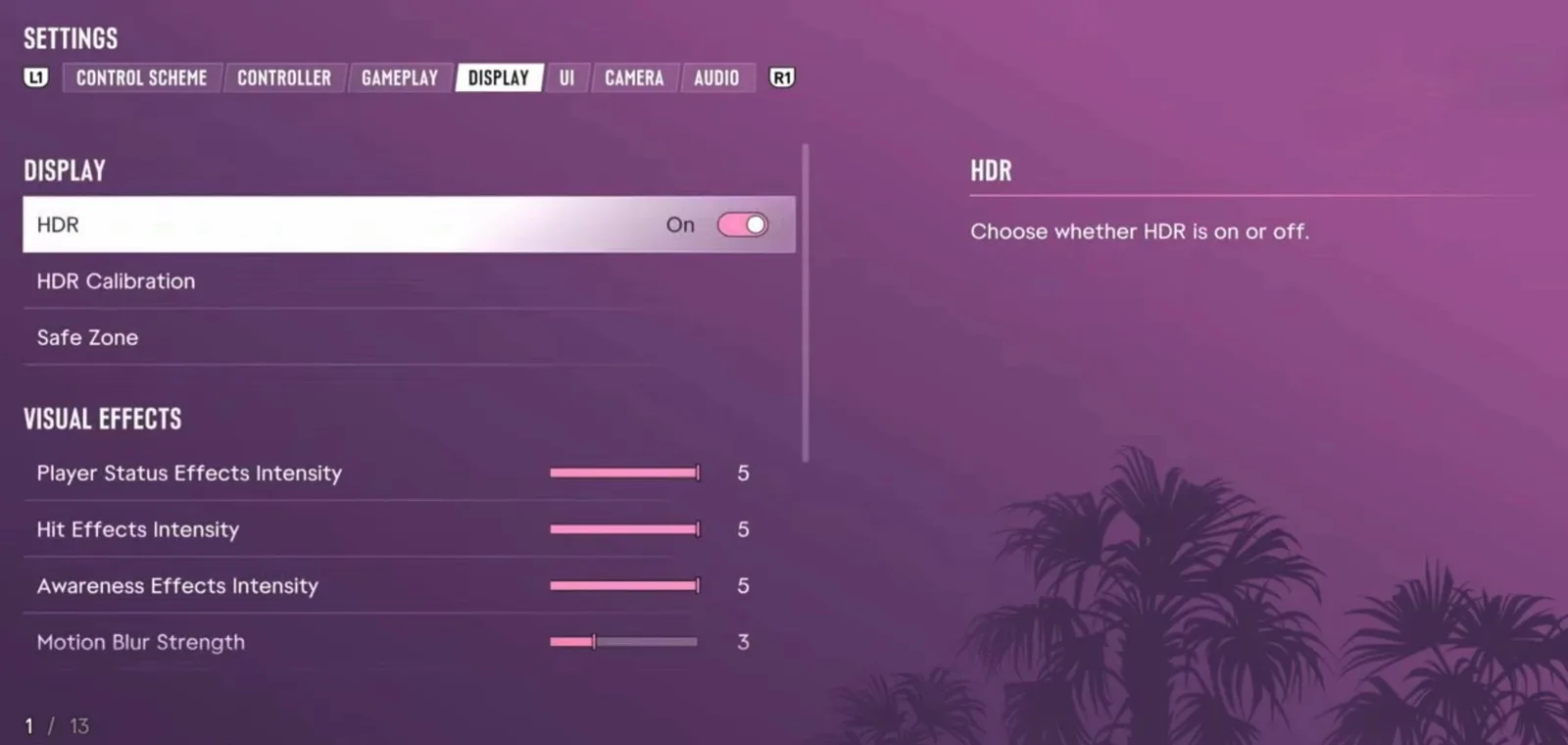
This is the Default scheme, the first of three, as the game's own settings screen shows it. Shooters will feel at home: aim on L2, shoot on R2, cover on R1. Note that crouch is on ○ and melee on □.
- L1: Holster your weapon
- L2: Aim / interact
- R1: Take cover
- R2: Shoot
- △: Interact
- □: Melee
- ○: Crouch
- ✕: Jump / climb
- L3: Run (click the left stick)
- R3: Look behind
- L: Move (left stick)
- R: Look (right stick)
- Touchpad: Open the map
- Options: Pause
- D-pad: Phone, radio, objective and minimap, detonate explosives
02Where to change them
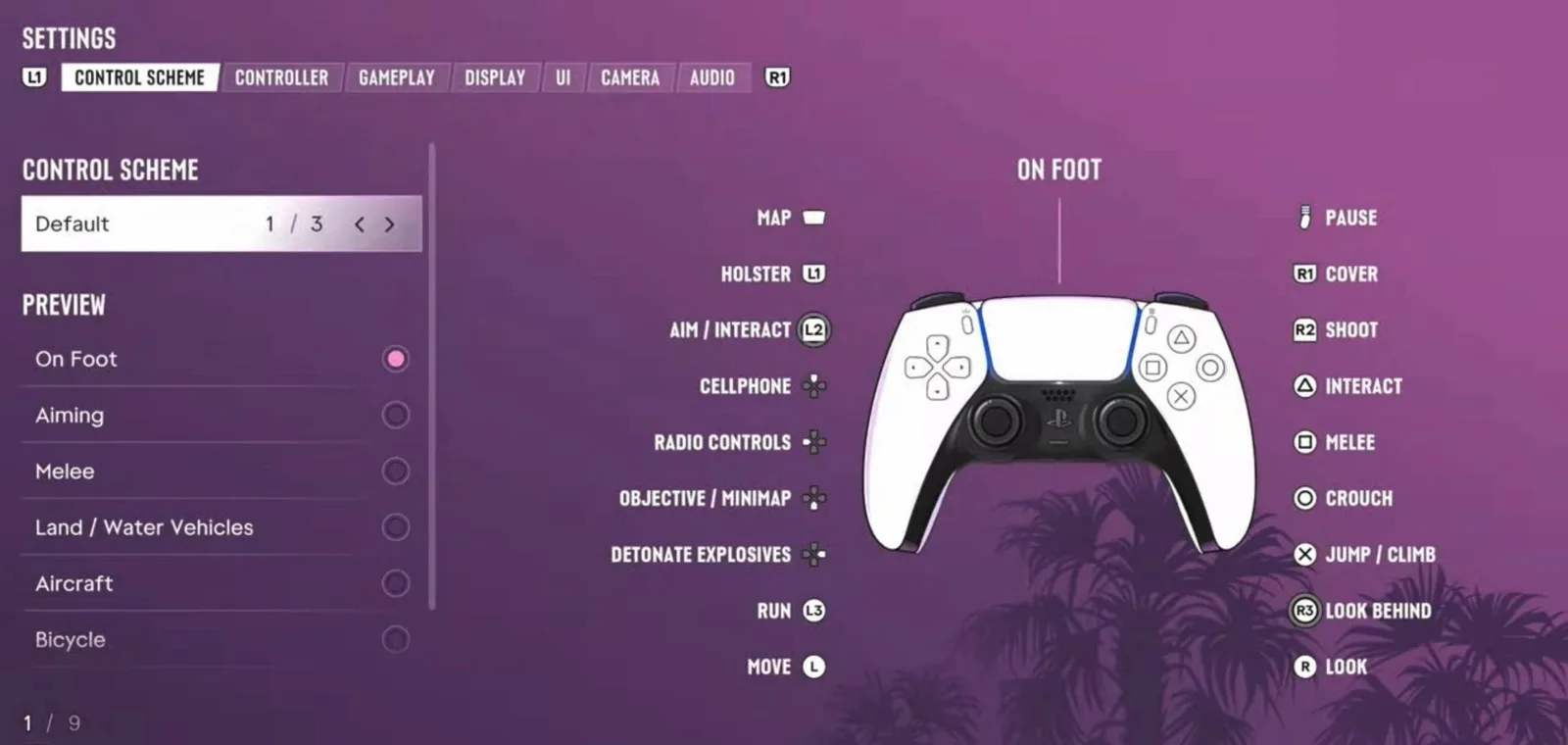
Open Settings and you get seven tabs: Control Scheme, Controller, Gameplay, Display, UI, Camera and Audio. Control Scheme lets you switch between three layouts and preview each one for on foot, aiming, melee, land and water vehicles, aircraft and bicycles. The Display tab has the HDR switch plus sliders for status-effect, screen-effect and motion-blur strength, which is worth turning down if the 30fps feels smeary to you.
03Every control layout
The game shows 9 control previews under Settings, Control Scheme. Here is every one of them on the Default scheme, read from our own PS5 Pro on launch night. Small details worth knowing: the D-pad works your turn signals in cars, L3 is horn and nitrous, ○ switches the headlights, and bikes get a dedicated bunnyhop.
The D-pad actions change with each mode; the screenshot shows the exact direction for each.
04Aiming
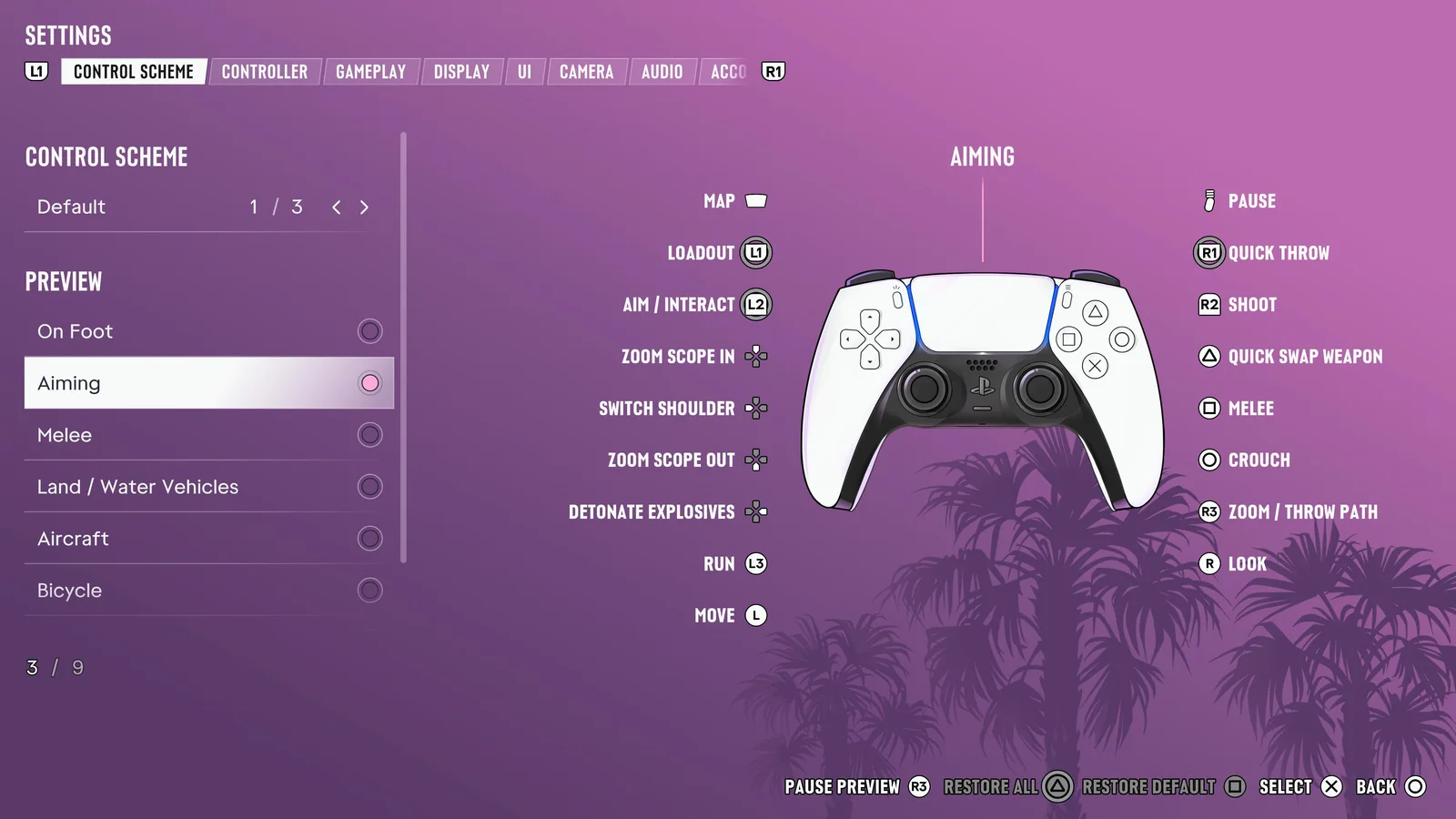
- L1: Loadout
- L2: Aim / interact
- D-pad: Zoom scope in
- D-pad: Switch shoulder
- D-pad: Zoom scope out
- D-pad: Detonate explosives
- L3: Run
- Left stick: Move
- R1: Quick throw
- R2: Shoot
- △: Quick swap weapon
- □: Melee
- ○: Crouch
- R3: Zoom / throw path
- Right stick: Look
05Melee
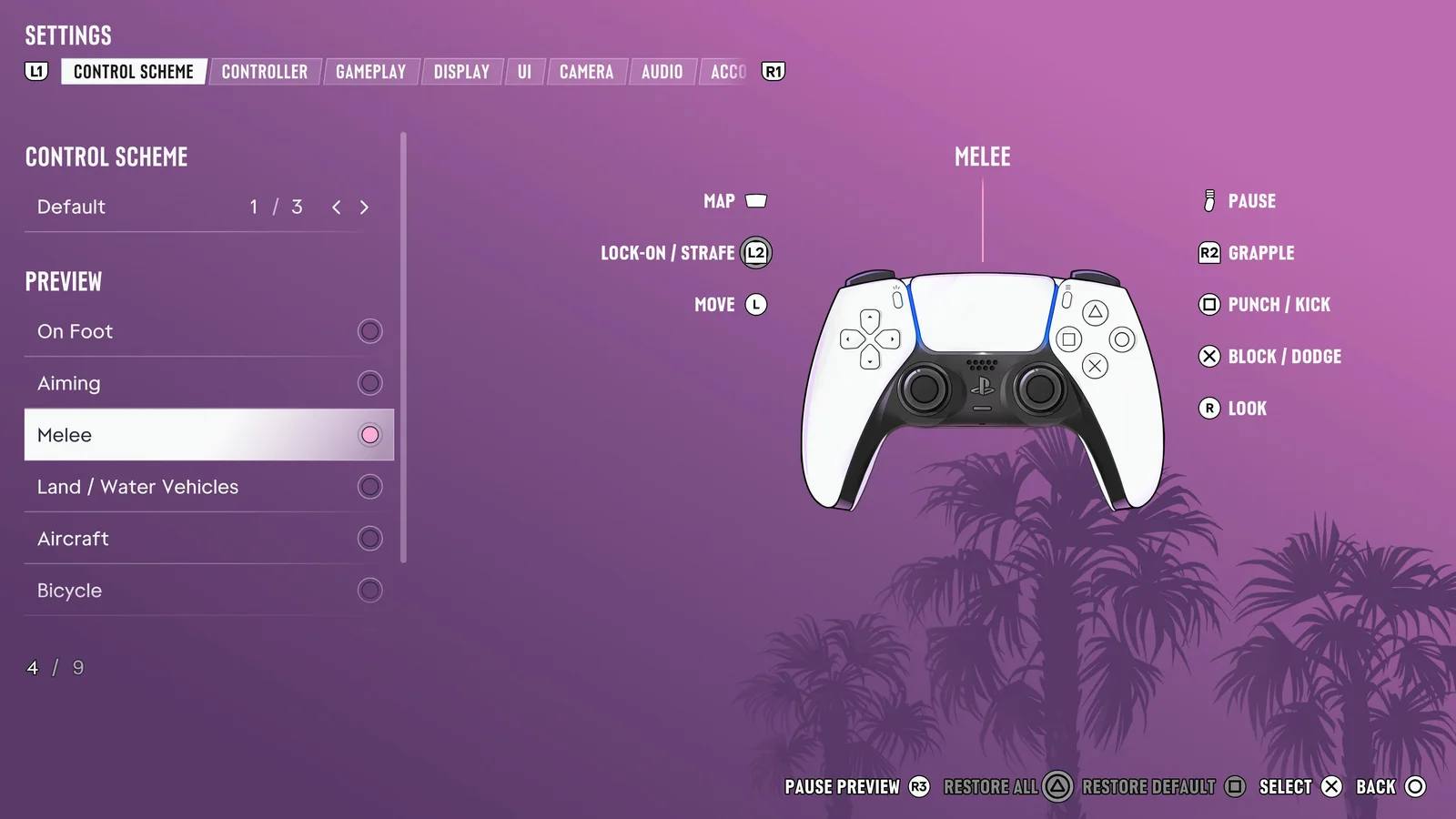
- L2: Lock-on / strafe
- Left stick: Move
- R2: Grapple
- □: Punch / kick
- ✕: Block / dodge
- Right stick: Look
06Cars, bikes and boats
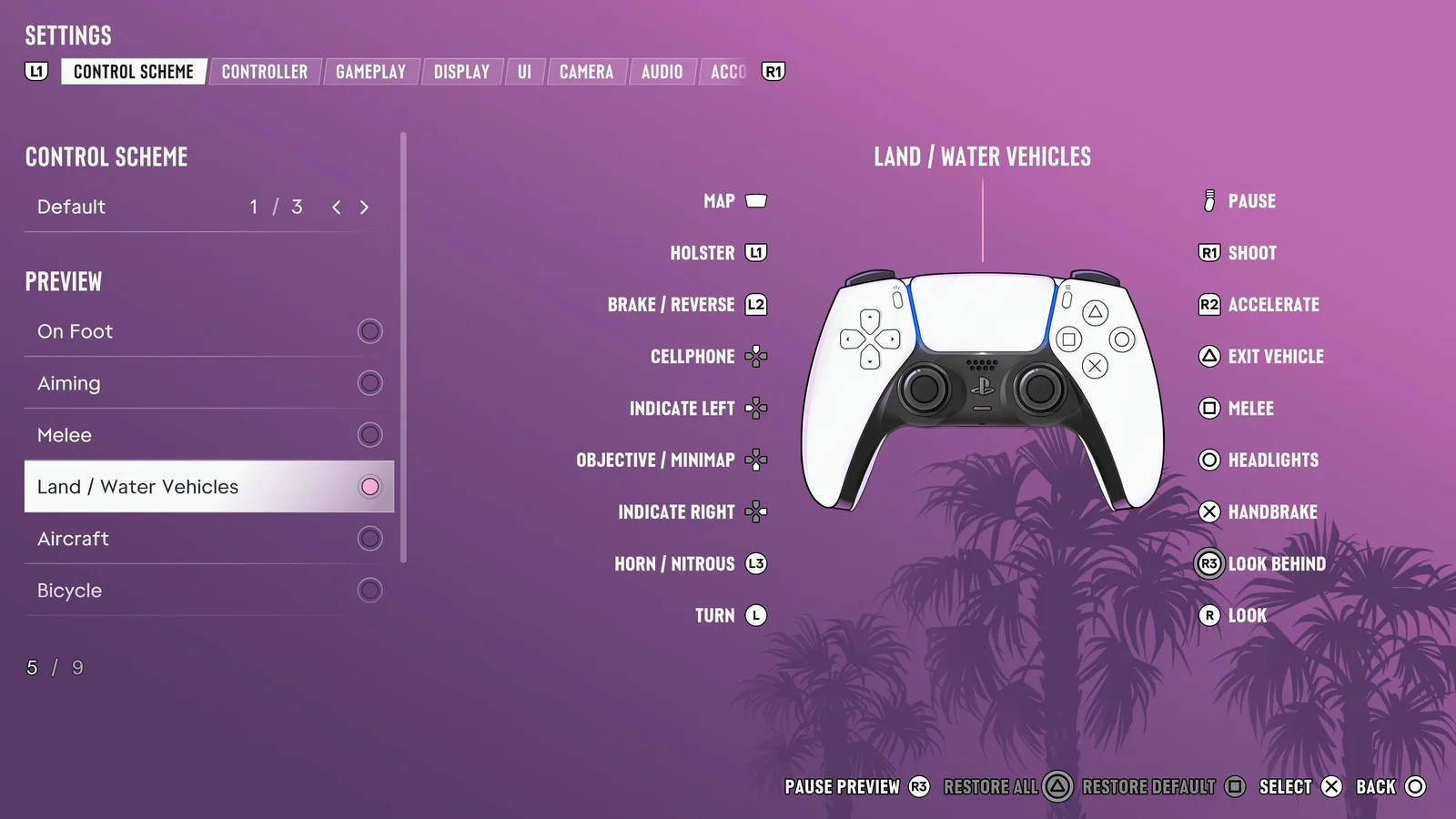
- L1: Holster
- L2: Brake / reverse
- D-pad: Cellphone
- D-pad: Indicate left
- D-pad: Objective / minimap
- D-pad: Indicate right
- L3: Horn / nitrous
- Left stick: Turn
- R1: Shoot
- R2: Accelerate
- △: Exit vehicle
- □: Melee
- ○: Headlights
- ✕: Handbrake
- R3: Look behind
- Right stick: Look
07Planes and helicopters
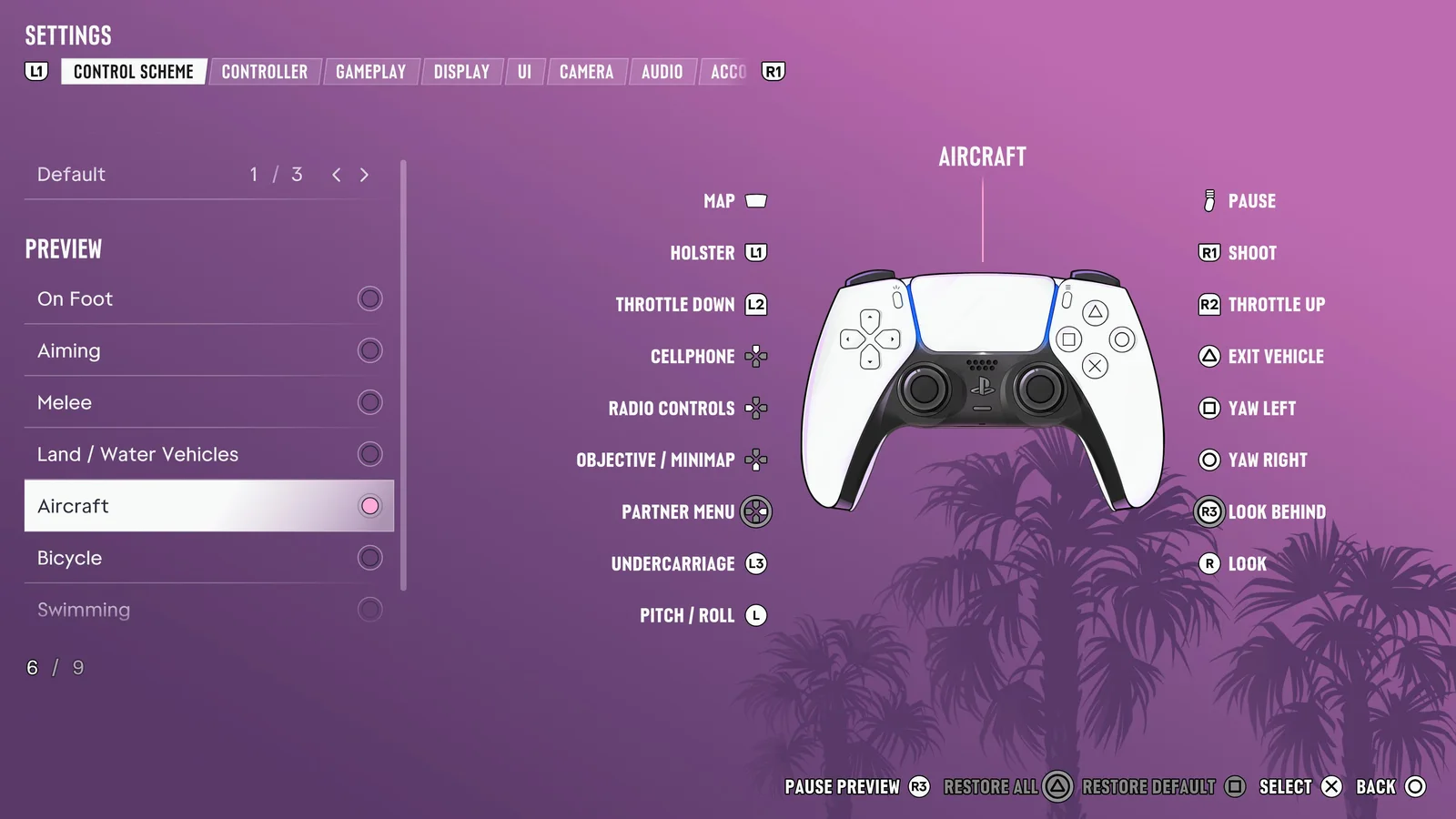
- L1: Holster
- L2: Throttle down
- D-pad: Cellphone
- D-pad: Radio controls
- D-pad: Objective / minimap
- D-pad: Partner menu
- L3: Undercarriage
- Left stick: Pitch / roll
- R1: Shoot
- R2: Throttle up
- △: Exit vehicle
- □: Yaw left
- ○: Yaw right
- R3: Look behind
- Right stick: Look
08Bicycle
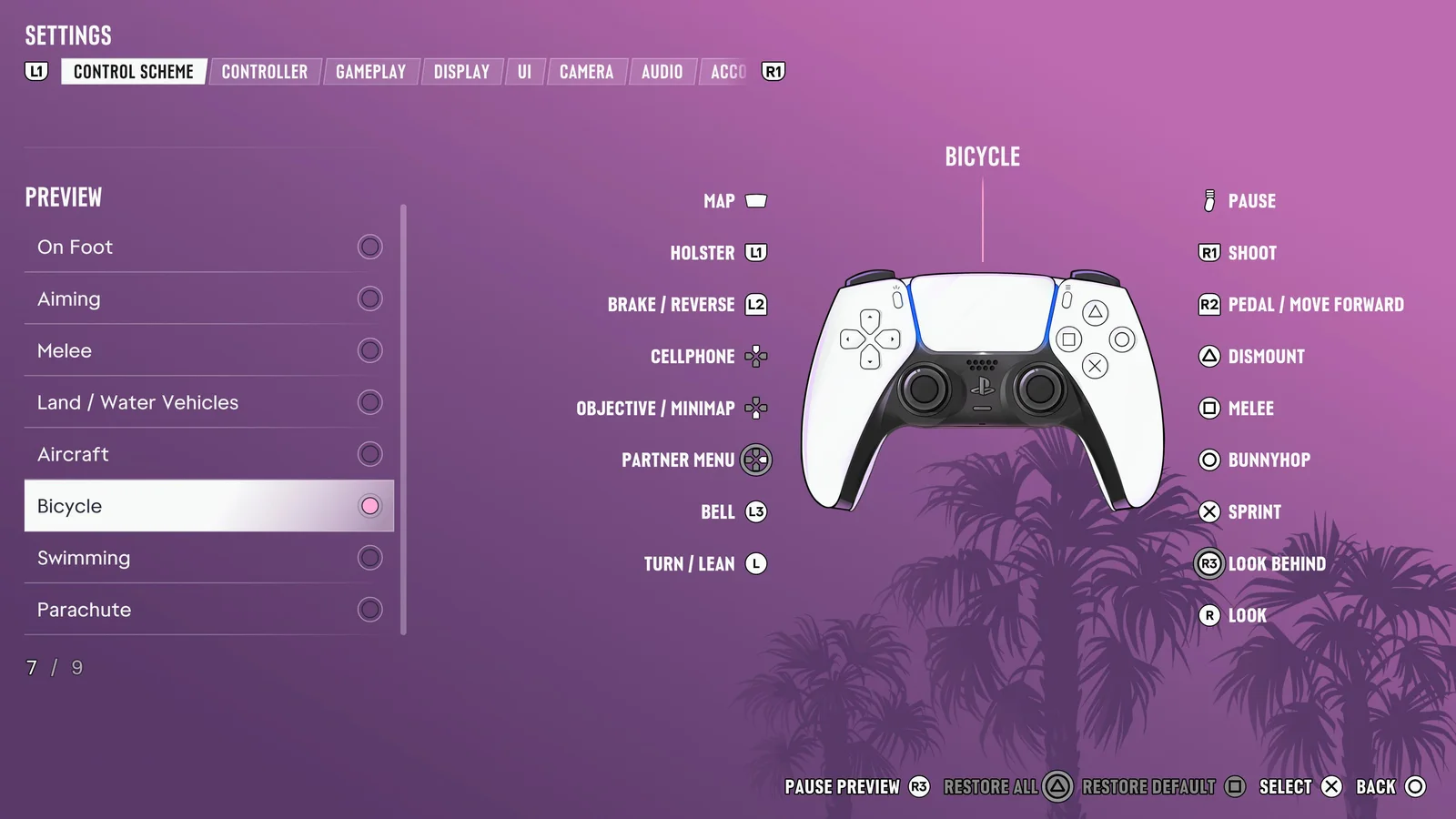
- L1: Holster
- L2: Brake / reverse
- D-pad: Cellphone
- D-pad: Objective / minimap
- D-pad: Partner menu
- L3: Bell
- Left stick: Turn / lean
- R1: Shoot
- R2: Pedal / move forward
- △: Dismount
- □: Melee
- ○: Bunnyhop
- ✕: Sprint
- R3: Look behind
- Right stick: Look
09Swimming
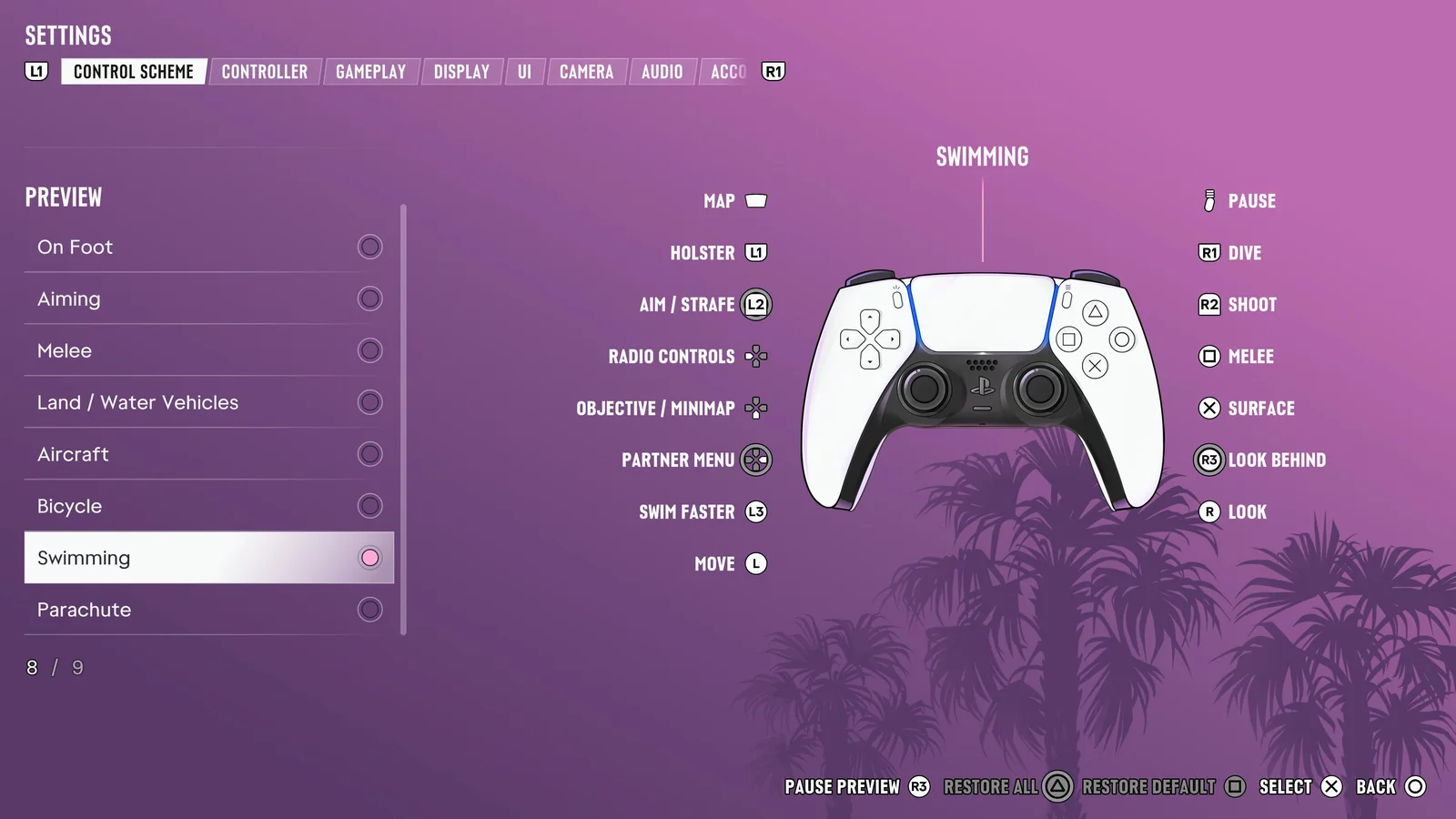
- L1: Holster
- L2: Aim / strafe
- D-pad: Radio controls
- D-pad: Objective / minimap
- D-pad: Partner menu
- L3: Swim faster
- Left stick: Move
- R1: Dive
- R2: Shoot
- □: Melee
- ✕: Surface
- R3: Look behind
- Right stick: Look
10Parachute
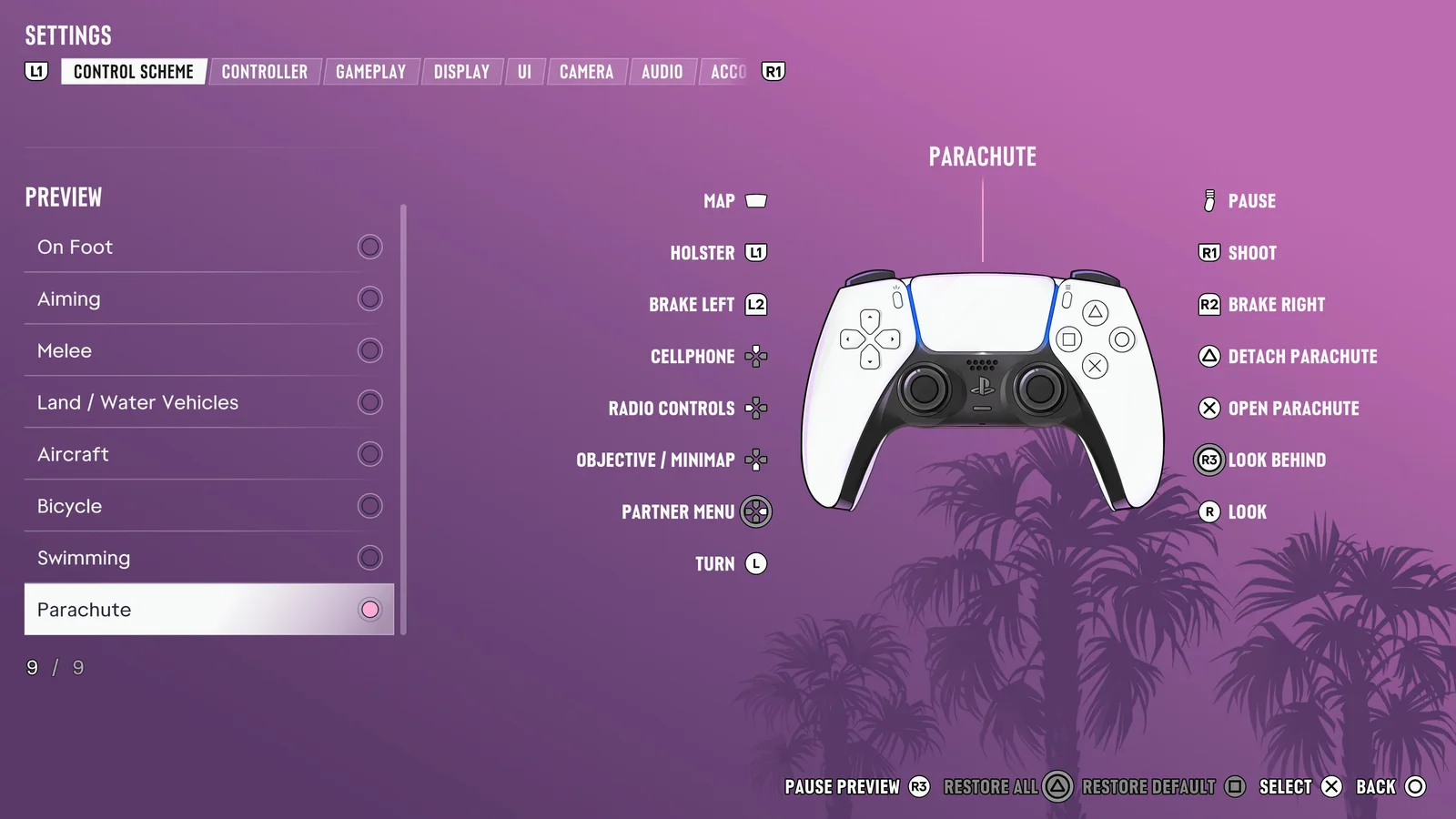
- L1: Holster
- L2: Brake left
- D-pad: Cellphone
- D-pad: Radio controls
- D-pad: Objective / minimap
- D-pad: Partner menu
- Left stick: Turn
- R1: Shoot
- R2: Brake right
- △: Detach parachute
- ✕: Open parachute
- R3: Look behind
- Right stick: Look
Quick answers
How do you run in GTA 6?
Click the left stick (L3) while moving.
How do you take cover in GTA 6?
Press R1 near a wall or object.
Can you change the controls in GTA 6?
Yes. Settings, Control Scheme has three layouts, and you can preview each for walking, aiming, driving, flying and cycling.
How do you crouch in GTA 6?
Press ○ (circle) on PS5. Melee is on □ (square).
How do you open the map in GTA 6?
Press the touchpad on the PS5 controller.
How do you aim and shoot in GTA 6 on PS5?
Hold L2 to aim and press R2 to shoot.
How do you put your weapon away in GTA 6?
Press L1 to holster it.
How do you turn off motion blur in GTA 6?
Turn it down with the motion-blur slider in Settings, Display, which also has the HDR switch and the status-effect and screen-effect sliders.
How do you look behind you in GTA 6?
Click the right stick (R3).
Keep going
Facts checked against the sources tracked on our hub. Confirmed, reported and rumoured claims are labelled.